Best Full-Page Screenshot Extensions for Chrome (2026)

Searching for the best full-page screenshot extension usually means one of two things: you need a reliable way to capture an entire scrolling webpage, or you're tired of stitching captures manually. Here are the extensions people actually install — and what each is best at.
Quick comparison
| Extension | Best for | Full-page | Editing depth | Price |
|---|---|---|---|---|
| GoFullPage | Raw full-page captures | ✓ Excellent | Basic (Premium) | Free / $12 yr |
| Awesome Screenshot | Capture + screen recording | ✓ | Good annotation | Free / from $6 mo |
| FireShot | PDF pros, lifetime license | ✓ | Advanced editor | Free / $39.95 once |
| SnapFrame | Capture-to-export workflow | ✓ | Full suite + social presets | Free / from $2.99 mo |
1. GoFullPage — best for capture-only workflows
GoFullPage is the default recommendation for full-page screenshots. It auto-scrolls, stitches seamlessly, and exports PNG or PDF. Millions of users rely on it for documentation and archiving.
Strengths: Reliable stitching, unlimited free captures, lightweight.
Limitations: Annotation and crop require Premium. No social resize presets, no comparison stitching. Post-capture editing usually happens in another tool.
2. Awesome Screenshot — best for capture + recording
Awesome Screenshot combines screenshots with screen recording, cloud sharing, and integrations with Slack, Jira, and Trello. It's a collaboration-focused tool with solid annotation.
Strengths: Screen recording, shareable cloud links, team workflows.
Limitations: Cloud-centric by design. Social-specific resizing is limited to generic crop. No side-by-side comparison stitch. Cloud saves flat images for sharing — not restorable editor sessions.
3. FireShot — best for PDF power users
FireShot has been around for years and offers a robust editor with a one-time purchase option. It's popular with professionals who need PDF output and advanced editing.
Strengths: Lifetime license available, strong PDF support, mature editor.
Limitations: Heavier UI than newer extensions. Less focused on social-media-ready resizing. Separate editor flow from capture.
4. SnapFrame — best for end-to-end screenshot workflows
SnapFrame targets a different problem: not just capturing a page, but getting from capture to a finished, annotated, platform-ready image without leaving your browser tab.
Strengths:
- Full-page, element, and workspace capture modes
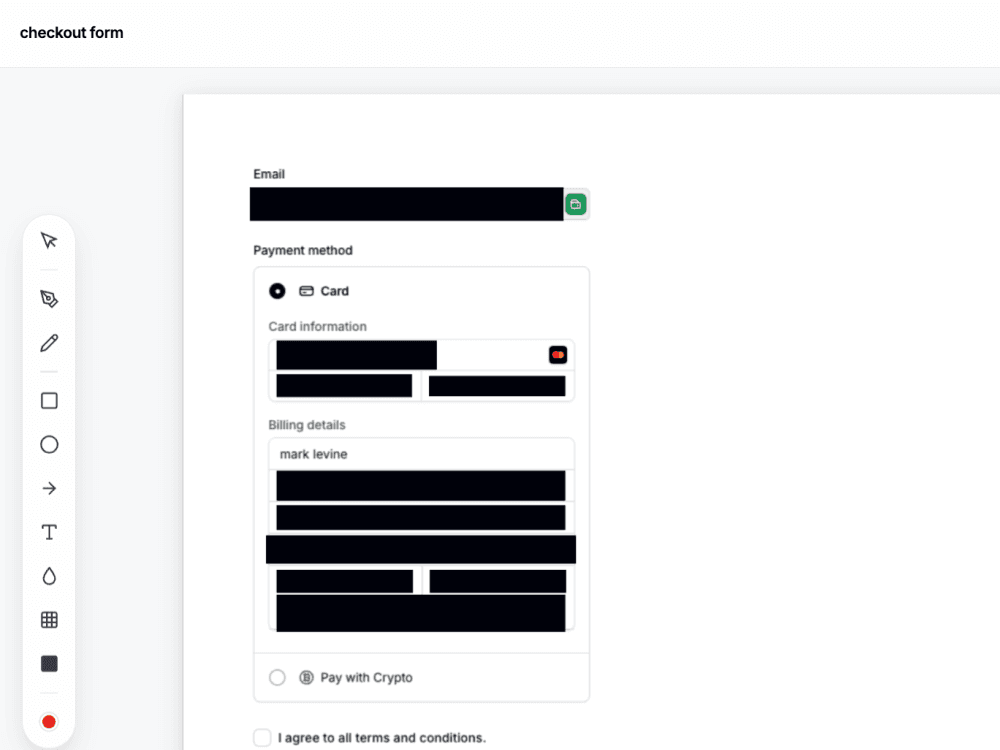
- Annotation suite (pen, shapes, text, blur) included free
- Social resize presets for Instagram, TikTok, LinkedIn, X, and more
- Side-by-side comparison stitching (Pro)
- Native resolution export at device pixel ratio
- Local-first — cloud sync only when you choose (Pro Cloud Library restores full edit state)
Limitations: Free tier includes 3 lifetime exports. No screen recording. Newer extension with a smaller install base than GoFullPage.
How to choose
- Just need a raw full-page image? GoFullPage.
- Need screen recordings and team sharing? Awesome Screenshot.
- Want a lifetime license and PDF focus? FireShot.
- Need capture + annotate + resize + export in one tab? SnapFrame.
The hidden cost of "free" capture extensions
The best full-page screenshot extension isn't always the one with the most installs. It's the one that matches your full workflow. A free capture tool that sends you to three other apps costs time — and for freelancers and teams billing by the hour, that adds up fast.
If you find yourself re-uploading every GoFullPage capture into Figma, Canva, or a desktop editor, you're paying in tab-hopping what you save in subscription fees.
Stop tab-hopping for one screenshot
Capture, redact, and document — all in your browser, all in SnapFrame.
Start free. No account, no card, no catch.