GoFullPage Alternative: When Capture-Only Isn't Enough

GoFullPage is one of the most popular full-page screenshot extensions on Chrome — and for good reason. It stitches long webpages reliably and exports clean PNGs or PDFs. But if your workflow doesn't end at the download button, you may be looking for something more.
What GoFullPage does well
GoFullPage's core strength is full-page capture. Click once, it auto-scrolls the page, stitches frames together, and gives you a single image. For documentation, archiving, or quick reference shots, it's hard to beat.
GoFullPage Premium ($1/month) adds basic editing — crop, blur, text highlights, and timestamps. That's useful, but it's still a capture-first tool. Once you need social-specific sizing, side-by-side comparisons, or a full annotation workflow, most people open a second app.
The workflow gap capture-only extensions leave open
Here's the pattern we hear constantly:
- Capture the page with GoFullPage
- Open the image in another tool to annotate a bug or highlight a UI element
- Crop or resize for Instagram, LinkedIn, or a slide deck
- Re-export, rename, and finally send
That's four steps across two or three tabs for one screenshot. Capture-only extensions aren't broken — they're just optimized for a different job than "capture, polish, and ship."
What to look for in a GoFullPage alternative
If you're searching for a GoFullPage alternative, you're probably not unhappy with stitching quality. You want the steps after capture to happen in the same place. Look for:
- Full-page stitching — still non-negotiable for long landing pages and docs
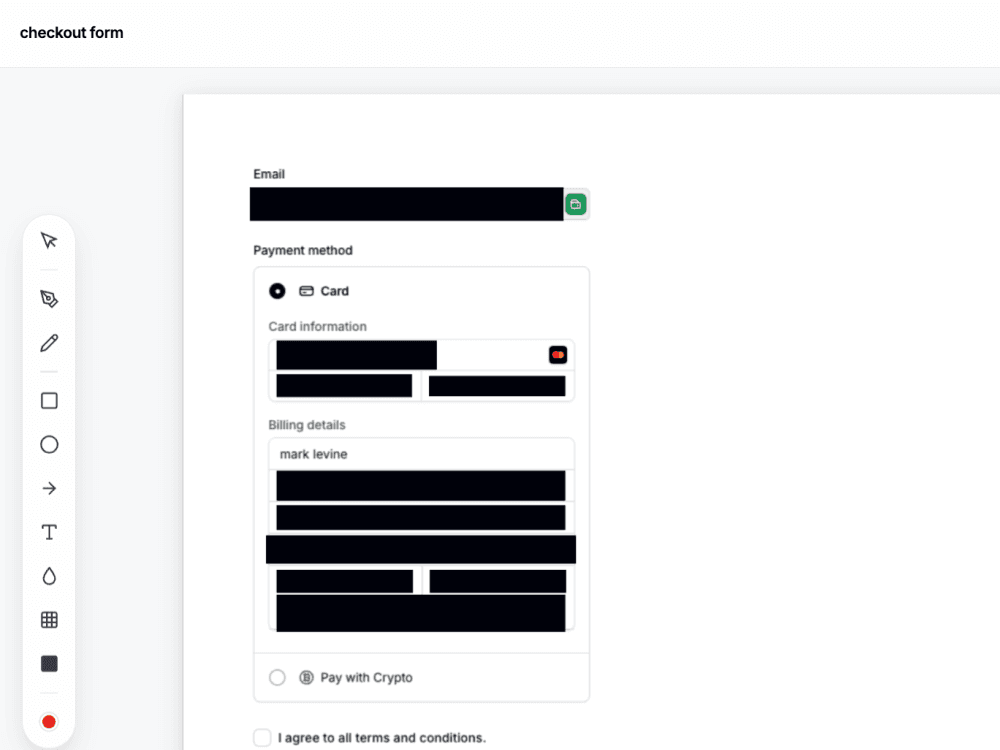
- Built-in annotation — arrows, shapes, text, and blur without re-uploading
- Social resize presets — Instagram, LinkedIn, X, TikTok aspect ratios with smart focal points
- Native resolution export — sharp output at your display's pixel density
- Comparison stitching — before/after or A/B layouts in one image
- Local-first privacy — editing locally, cloud only when you choose
SnapFrame vs GoFullPage — feature comparison
| Feature | SnapFrame | GoFullPage |
|---|---|---|
| Full-page capture | ✓ | ✓ |
| Annotation in same tab | ✓ Free | Premium only |
| Blur / redact | ✓ | Premium only |
| Social platform presets | ✓ 10+ platforms | — |
| Side-by-side comparison stitch | ✓ Pro | — |
| Resume editing on another device | ✓ Pro Cloud Library | — |
| PDF export | ✓ Pro | ✓ |
| Free tier | 3 exports, full editor | Unlimited captures |
When to stick with GoFullPage
GoFullPage is still the right choice if you only need a raw full-page image, you never annotate, and you want unlimited free captures with zero workflow overhead. It's lightweight and does one thing well.
When SnapFrame is the better fit
SnapFrame is built for people whose screenshot workflow doesn't end at capture. Designers marking up UI reviews, marketers resizing one grab for five platforms, freelancers sending polished annotated visuals to clients — anyone who'd otherwise tab-hop between a capture extension and an editor.
SnapFrame keeps capture, annotation, social resizing, caption bars, rounded corners, and export in a single Chrome tab. Pro adds PDF export, side-by-side comparison stitching, and optional Cloud Library sync so you can resume editing on another machine with your full edit state intact — not just a flat image.
You can start free with 3 exports and no account. If GoFullPage's capture quality is what you need but the post-capture workflow is what's slowing you down, SnapFrame is worth trying side by side.
Stop tab-hopping for one screenshot
Capture, redact, and document — all in your browser, all in SnapFrame.
Start free. No account, no card, no catch.