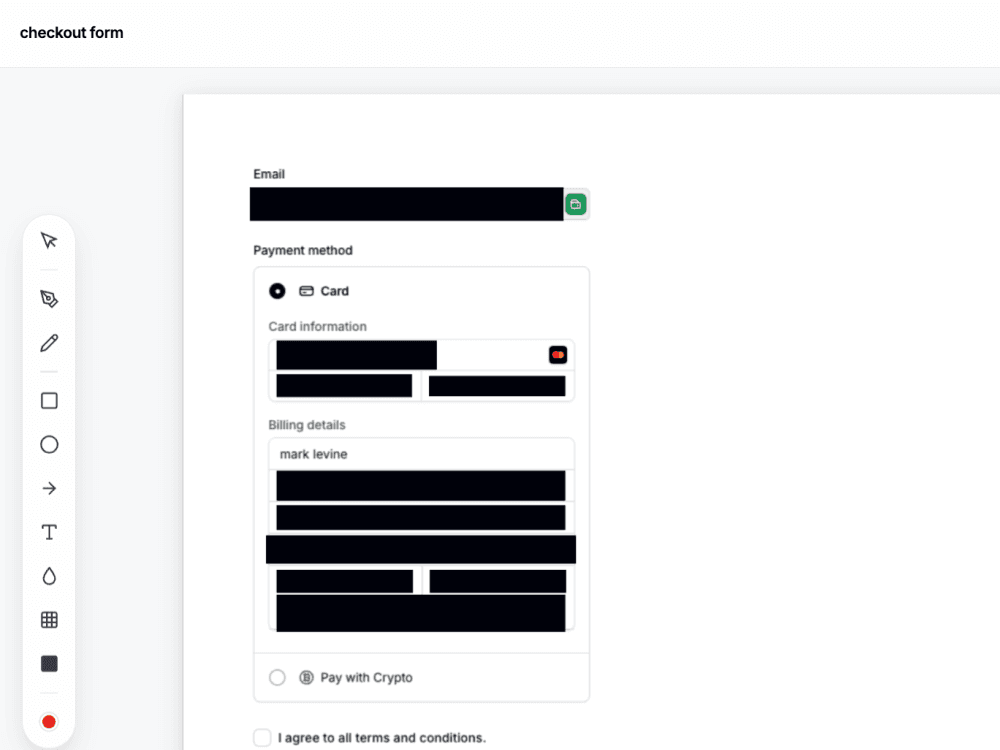
How to Capture a Full Webpage Screenshot in Chrome

Chrome's built-in screenshot tools only capture what's visible on screen. To grab an entire scrolling webpage — header to footer — you need a different approach. Here are the methods that actually work.
Method 1: Use a full-page screenshot extension (recommended)
This is the fastest and most reliable approach for everyday use. Extensions like SnapFrame, GoFullPage, and Awesome Screenshot auto-scroll the page, capture each frame, and stitch them into one seamless image.
With SnapFrame:
- Install SnapFrame from the Chrome Web Store
- Navigate to the page you want to capture
- Click the SnapFrame icon and choose Capture Full Page, or press Alt+S (Option+S on Mac)
- Wait for the progress bar to finish — SnapFrame handles sticky headers and inner scrollers automatically
- The editor opens with your full-page capture ready to annotate, crop, or export
SnapFrame renders at your display's native resolution (device pixel ratio), so even very tall pages stay sharp. For pages over ~28,000 pixels tall, it uses a partitioned canvas engine to avoid browser memory limits.
Method 2: Chrome DevTools (free, technical)
Chrome DevTools has a hidden full-page capture feature — useful if you can't install extensions:
- Right-click the page and choose Inspect
- Press Ctrl+Shift+P (Cmd+Shift+P on Mac) to open the Command Menu
- Type screenshot and select Capture full size screenshot
- Chrome saves a PNG to your Downloads folder
Downsides: No annotation, no editing, DevTools must stay open, and some complex pages (lazy-loaded content, fixed headers) may capture incorrectly. Fine for quick dev debugging, not ideal for polished output.
Method 3: Print to PDF (workaround)
Press Ctrl+P (Cmd+P on Mac), set destination to Save as PDF, and enable background graphics. This captures the full document layout but not a pixel-perfect screenshot — fonts, spacing, and interactive elements may render differently than on screen.
Method 4: Manual scrolling + stitching (not recommended)
Some people scroll manually and stitch screenshots in Photoshop or Preview. It works in a pinch but wastes time and often produces visible seams, especially on pages with parallax or sticky navigation.
Tips for better full-page captures
- Scroll the page first on infinite-scroll sites so lazy-loaded content appears before capture
- Collapse menus and modals — anything overlaying the page will appear in the shot
- Watch for fixed headers — good extensions hide sticky headers on non-first frames; DevTools does not
- Inner scrollers — dashboards and chat apps often scroll inside a container, not the window. Use element-picker mode to capture just that section
- Export format — PNG for lossless quality, JPG for smaller files, PDF for documents
What to do after you capture
Most people searching "how to capture full webpage screenshot" need more than the raw image. They need to highlight a section, blur a username, crop for social media, or add it to a bug report.
If you're using a capture-only extension, you'll need a second tool for that. SnapFrame opens the editor automatically after capture so you can annotate and export without re-uploading.
Stop tab-hopping for one screenshot
Capture, redact, and document — all in your browser, all in SnapFrame.
Start free. No account, no card, no catch.